
Photo editing with Gemini: 7 prompt templates for Nano Banana
7 prompt templates for changing backgrounds, natural portraits, and product photo editing with Gemini. Learn how to get started with Nano Banana and what to check in the result.
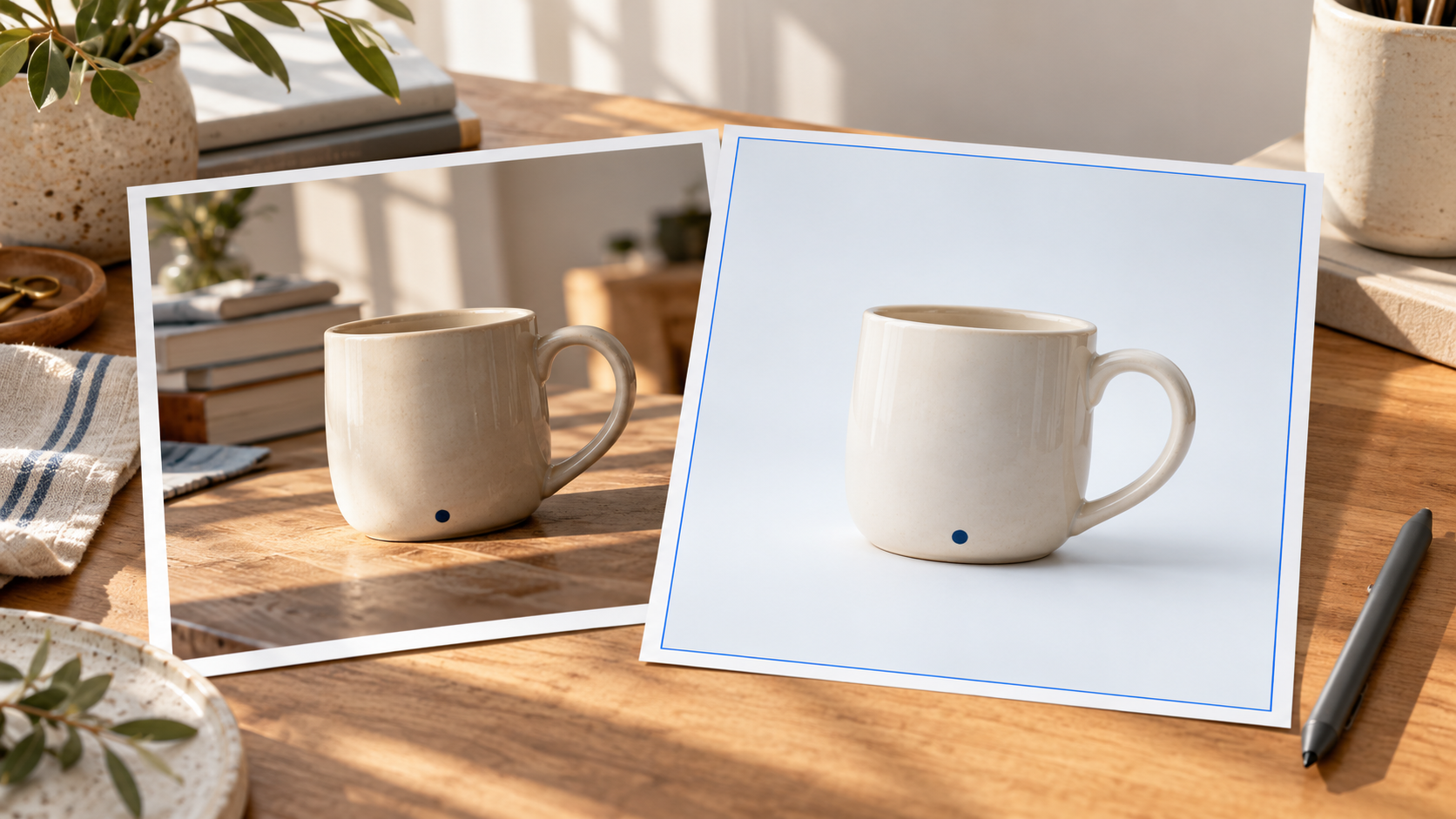
Illustrative image generated with AI.
To edit a photo with Gemini, you can describe the change you want to make and upload an image. For a more useful result, clarify three things in your prompt: what will change, what will be preserved, and where you will use the image. For example, instead of “make the photo look better,” you can start by saying, “make only the background light gray; keep my face, outfit, and framing.”
In this guide, you will find where Nano Banana fits within Gemini, how to start editing photos, and seven prompt templates you can adapt to different needs.
What is Nano Banana? How is it different from Gemini?
Gemini is the application you use; Nano Banana is the name Google uses for its image generation and editing models. Creating a new scene and modifying an uploaded photo are different starting points: when editing a photo, you need to add the source image.
Google published the Nano Banana 2.1 model card on October 6, 2026. Gemini’s product page links free access to Nano Banana, and access to 2.1 to Google AI plans. Check the current product page for the model and available features shown in your account. Free use does not mean unlimited use.
How do you edit a photo with Gemini?
- Open Gemini and sign in to your account.
- Upload the photo you want to edit. If it appears in the application, continue from Images or the image creation area.
- Ask for one change first. Add the face, product, color, or framing information you want preserved in the same prompt.
- Compare the output with the source photo. If there is an unwanted change, ask it to correct only that area within the same chat.
- Download the result; keep the original file separately.
Google’s official help page explains editing uploaded and generated images and using multiple images. Menu names may vary depending on the account and application version.
7 prompt templates for editing photos
Translation note: The prompt templates below are provided in English, translated from the Turkish guide.
In the prompts below, the phrase “the photo I uploaded” should correspond to the image you have actually added. Fill in the bracketed areas according to your needs. After trying a prompt, continue by describing the incorrect detail instead of writing a long description from scratch again.
1. A natural professional profile photo
Copyable prompt: Edit the portrait I uploaded so it is suitable as a professional profile photo. Preserve my facial features, age, hair, skin tone, and clothing. Only soften the light and turn the background into a simple, light gray studio backdrop. Keep the skin texture natural; do not add a beauty filter or a plastic look. Keep the head and shoulders in the frame, and make the output square.
Check: Does the face still look like you? Have the glasses, hairline, or clothing changed? Also review the result at a small profile-picture size.
2. Changing the background of a photo
Copyable prompt: In the photo I uploaded, change only the background to [a bright office / a plain wall / a green garden]. Preserve the person in the foreground, their pose, clothing, and face. Make the lighting and perspective of the new background match the person. Do not create a cut-out look around the hair and shoulder edges; do not add a new person or object.
Check: Are there artificial blends around the hair edges, glasses, or shadows? Did the person’s hand or face also change while the setting changed?
3. Reducing scratches in an old photo
Copyable prompt: Reduce the scratches and dust marks in the old photo I uploaded, and adjust the contrast in a measured way. Preserve the faces, expressions, clothing, and existing details of the people in the photo. Do not redraw details that cannot be distinguished in the source as if they were certain. Keep the black-and-white look; do not colorize it or add new elements.
Check: Have new details appeared, especially in the eyes, mouth, or jewelry? The edited copy may contain an interpretation; keep the original in the family archive.
4. A simple background for a product photo
Copyable prompt: Edit the product photo I uploaded for catalog use. Preserve the product’s shape, color, material, the text on it, and the quantity. Make the background white; leave a light and natural shadow under the product. Do not create extra accessories, packaging, labels, or advertising text. Make the entire product visible within the frame, and make the output square.
Check: Are the labels and product color the same as in the source? Have scratches or defects disappeared? For a sales image, prioritize matching the product shown with the real product.
5. Removing an unwanted object
Copyable prompt: Remove the [red bag in the lower-right corner] from the photo I uploaded. Preserve the other parts of the photo, the people, the colors, and the framing. Fill the emptied area in a way that matches the surrounding surface and perspective. Do not add a new object. If it is unclear which object should be removed, ask before starting the edit.
Check: Have nearby feet, tables, or floor lines also been erased? Has an obvious patch formed where the same texture is repeated?
6. Adapting a photo to a vertical social media format
Copyable prompt: Recompose the horizontal photo I uploaded as a 4:5 vertical post. Preserve the main subject and important details; do not cut off the head, hands, or product. If needed, extend only the background naturally. Leave simple empty space at the top so I can place a short headline. Do not add text, a logo, or new people to the image.
Check: Check whether the image is actually in a 4:5 ratio and whether the extended areas fit the scene. If the requested ratio is not achieved, do the final crop in an image editor.
7. Combining two product photos in the same scene
Copyable prompt: Bring together the products in the two photos I uploaded in the same simple tabletop scene. Show the [ceramic mug] from the first photo on the left and the [notebook] from the second photo on the right. Preserve each product’s color, form, and the text on it. Since you do not know their real dimensions, do not make any claim of certainty about scale. Make the light and shadows come from the same direction; do not add another product.
Check: Is the product count correct? Has the mug handle or notebook cover changed? If the scale will be used for a physical size comparison, edit it separately using real measurements.
If the face changes or the result looks artificial
Writing “do not change my face” does not mean the likeness will necessarily be preserved. Google’s Nano Banana 2.1 model card states that errors can still occur in character consistency and some visual details.
First, return to a smaller edit. Instead of changing the clothing, location, lighting, and camera angle at the same time, try only the background. Then you can use the following correction prompt:
Correction prompt: In the last output, [write the changed detail] is different from the source photo. Using the first image I uploaded as a reference, correct only this detail; preserve the other parts of the last output. If you cannot distinguish the detail well enough, state that instead of filling it in by guessing.
Zoom in to examine small text, hands, reflections, and object counts. Especially for items that require precision, such as product labels or poster text, making the final correction manually may be a more controlled approach.
Is Gemini photo editing free?
Nano Banana has a free access option; model access and usage limits vary by plan. For Nano Banana 2.1, check the current Google AI plan terms on Google’s product page. Do not assume that a fixed daily number of images applies to every account; rely on the usage limits page and the warning in your account.
What should you check before uploading a photo?
Start with your own images or examples you have permission to use. Before uploading other people’s portraits, client files, and private documents, check permission and data usage terms. Google explains how image inputs are processed in the Gemini Privacy Hub.
Do not share a generated or altered scene as if it were a record of a real event. In photo editing, your starting goal should be a small operation where you know which details need to be preserved.
A short template to use in your next image
Template: In the photo I uploaded for [where I will use the image], change only [the section that will change]. Keep [details to be preserved] the same. Make the light [description], the background [description], and the output ratio [ratio]. Do not add [additions I do not want].
If you want to generate a new image from scratch, you can move on to the guide for preparing your first image step by step. To make your prompts reusable, review the AI brief approach, and for tool selection, review the Gemini entry.
Final check for source and product information: October 27, 2026. The prompts are starter templates; compare every output with your own source photo.
Source: https://gemini.google/tr/overview/image-generation/





Related reading
What Is yt-dlp? What Is It Used For and How Does It Work?
yt-dlp is an open-source tool for downloading video and audio from the command line. Learn about format selection, the download steps, and FFmpeg’s role.
AI and data security: opportunities and risks
AI can support security analysis while introducing new risks. Understand both sides before relying on a system.
Build an AI product: from idea to prototype
Turn an idea into a testable prototype by defining the problem, selecting a small scope and learning from users.